
If you have an iPhone with Touch ID (other than the iPhone 5S) or Face ID or an Apple Pay compatible iPad or Mac*, you can use Apple Pay to make deposits into your TAB account:
Using the TAB app – find out more here
At tab.com.au (using Safari)
*Find out more about compatible Apple Pay devices here.
To make a deposit using Apple Pay, your Apple Pay account must be:
Held in the same name as your TAB account
Linked to a Visa or Mastercard debit card – due to Australian law, credit card deposits cannot be accepted
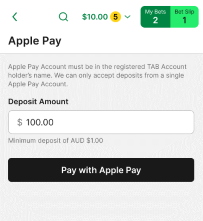
The minimum Apple Pay deposit is $1.00.
Maximum Apple Pay deposits vary depending on several factors – find out more here.
Please note: When you deposit funds into your TAB account, you'll only be able to withdraw those funds once they have been turned over (i.e., used to bet). So, only deposit funds into your account that you intend to bet with.
Making an Apple Pay deposit using the TAB app
To make an Apple Pay deposit using the TAB app:
Log in to your account.
Tap your balance/the header at the top of the page.

Tap 'Deposit'.
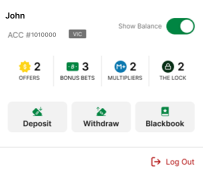
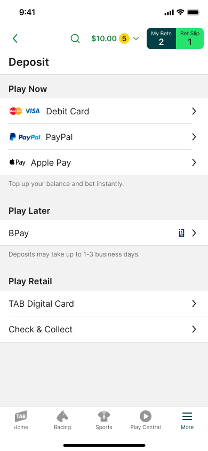
Tap 'Apple Pay'.
Enter the amount you want to deposit, tap 'Pay with Apple Pay', and follow the onscreen prompts to complete the transaction.
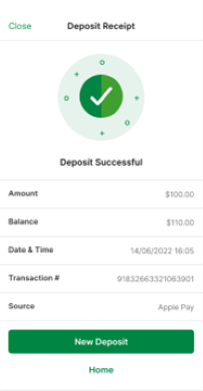
If your deposit is successful, you'll receive a deposit receipt.
Making an Apple Pay deposit at tab.com.au
To make an Apple Pay deposit at tab.com.au:
On your Apple Pay compatible device, open tab.com.au using Safari.
Log in to your account.
Tap on your account balance in the top right corner of the screen.

In the 'Deposit' section, if not already pre-selected, use the drop-down menu under 'Select Payment Type' to select Apple Pay. Then, enter the amount you want to deposit or use one of the quick deposit buttons to select a standard amount and tap 'Deposit'.
If the drop-down menu under 'Select Payment Type' isn't working, select 'Update Payment Details' and then select Apple Pay on the screen that appears.
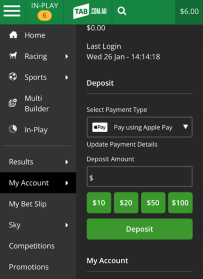
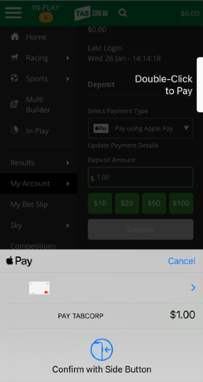
Double-click the button on the right side of your device (or follow the on-screen prompts).
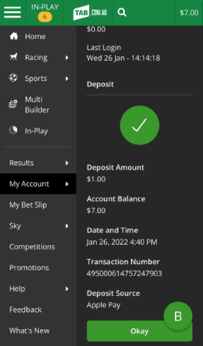
If your deposit is successful, you'll receive a receipt. Tap 'Okay' on the receipt to complete your Apple Pay transaction.
Can't find what you're looking for?

Contact Us
If you need assistance, you can use our Email us form to log your enquiry or send us feedback. Complete the short form and we'll respond as soon as we can.

Customer Service
If you can’t find what you need, call us on 131 802 and have your account number and PIN ready.
Want to place a bet by phone? See phone betting options.